Introducing Tap to Pay: sell raffle tickets from the phone in your pocket
Every organiser who has ever run a stall at a fete knows the moment: someone wants three tickets, reaches for their wallet, finds no cash, and says “I’ll come back later.” They almost never do.
Today we’re fixing that. RaffleLink Ticket Booth — our new mobile app — is live on the App Store and Google Play. It turns your phone into a raffle ticket till: your volunteer takes a contactless card or a phone wallet, the payment goes through on their own handset, and the buyer’s tickets are issued and emailed before they’ve walked away.
No card reader. No terminal rental. No end-of-day reconciliation between a cash tin and a spreadsheet.
See it in action
Here’s the whole thing, end to end — a real sale from opening the app to a completed order:
Prefer it full screen? Open the interactive demo in a new tab.
Why in-person selling needed this
In-person is still where a huge share of community raffle tickets are sold — at the club night, the school fete, the markets, the game-day gate. It’s also where the most money quietly leaks away:
- Fewer and fewer people carry cash. Every “sorry, I’ve got no cash on me” is a sale that simply doesn’t happen.
- EFTPOS terminals are a project of their own. Renting one, charging it, keeping it paired, returning it — for a handful of hours of selling once or twice a year.
- Paper stubs create work later. Someone has to tally them, reconcile them and store them safely until after the draw.
- Cash creates risk. A float, a tin, a volunteer walking to the bank.
Tap to Pay removes the hardware from the equation entirely. Contactless is how most Australians already pay for a $10 purchase — this just lets your raffle accept it.
How a sale works
The app walks a seller through five short steps, and it’s deliberately hard to get wrong — the person using it is often a parent volunteer who has had it on their phone for ninety seconds.
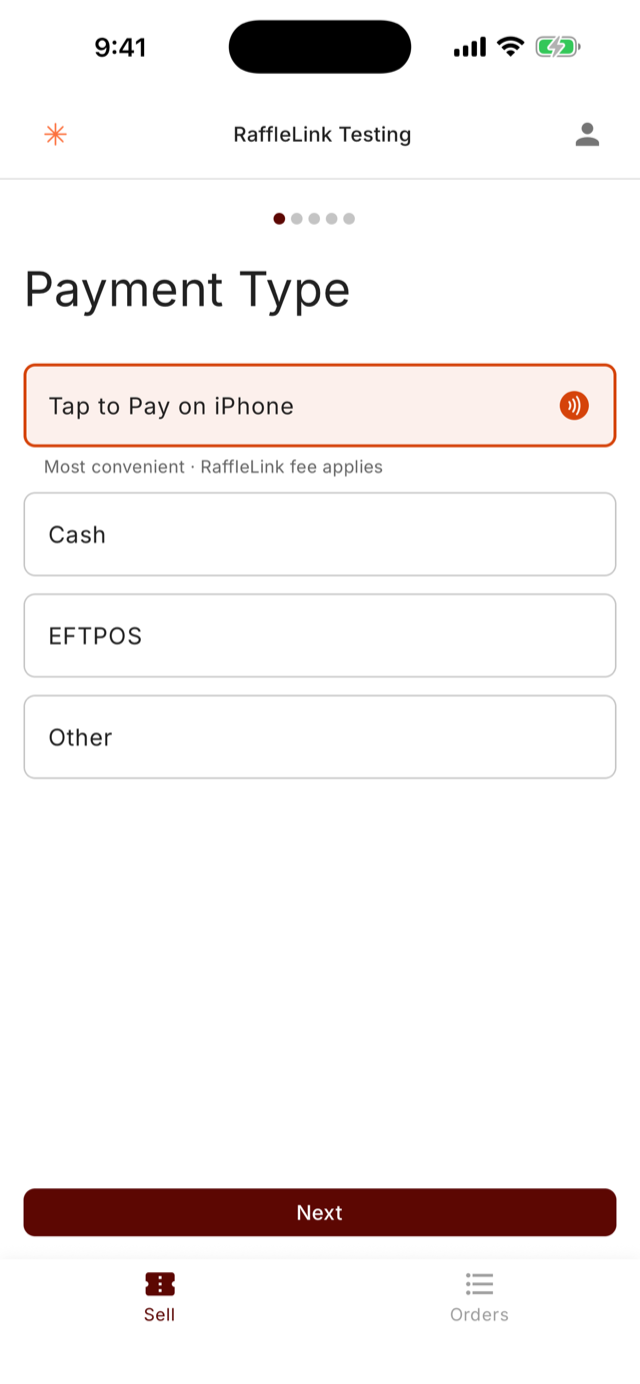
- Payment type — Tap to Pay, cash, EFTPOS or other.
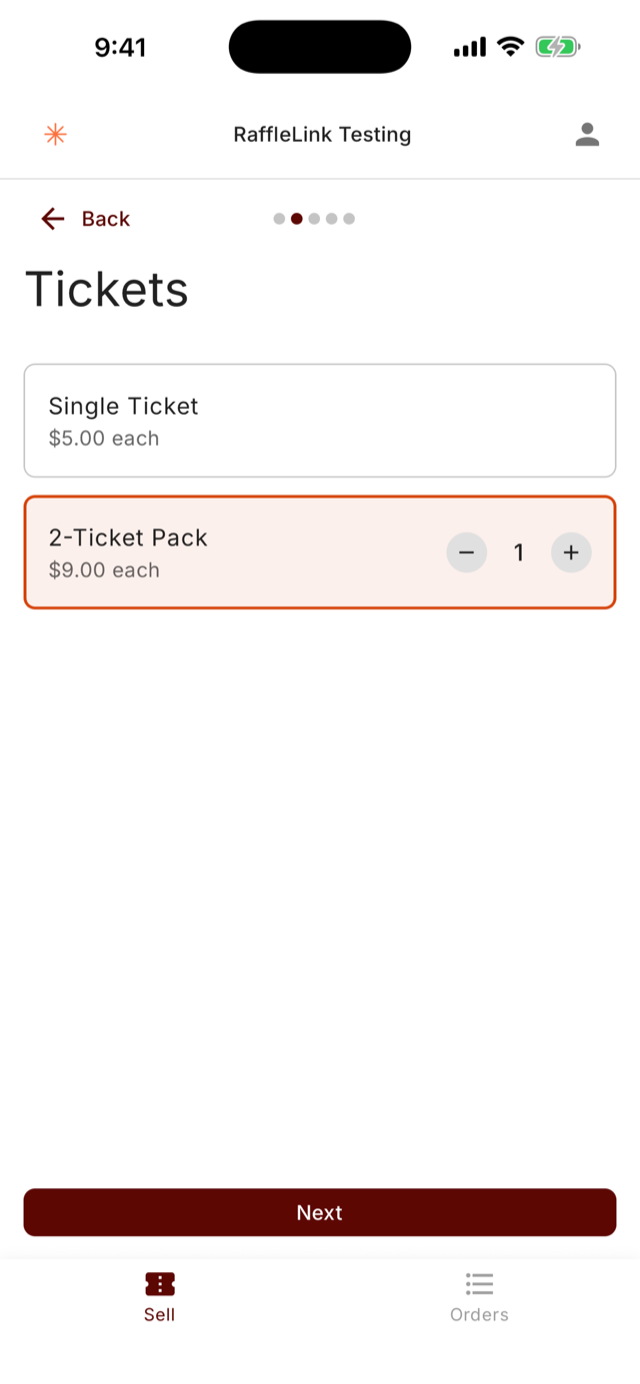
- Tickets — a single ticket or any of your ticket packs, with a quantity stepper.
- Buyer details — name and email, plus phone or a full address where your raffle’s permit conditions require it. The app asks for exactly what that raffle needs and nothing more.
- Your questions — any custom questions you’ve set up come through too, so a seller can still record which team member or classroom the sale should be credited to.
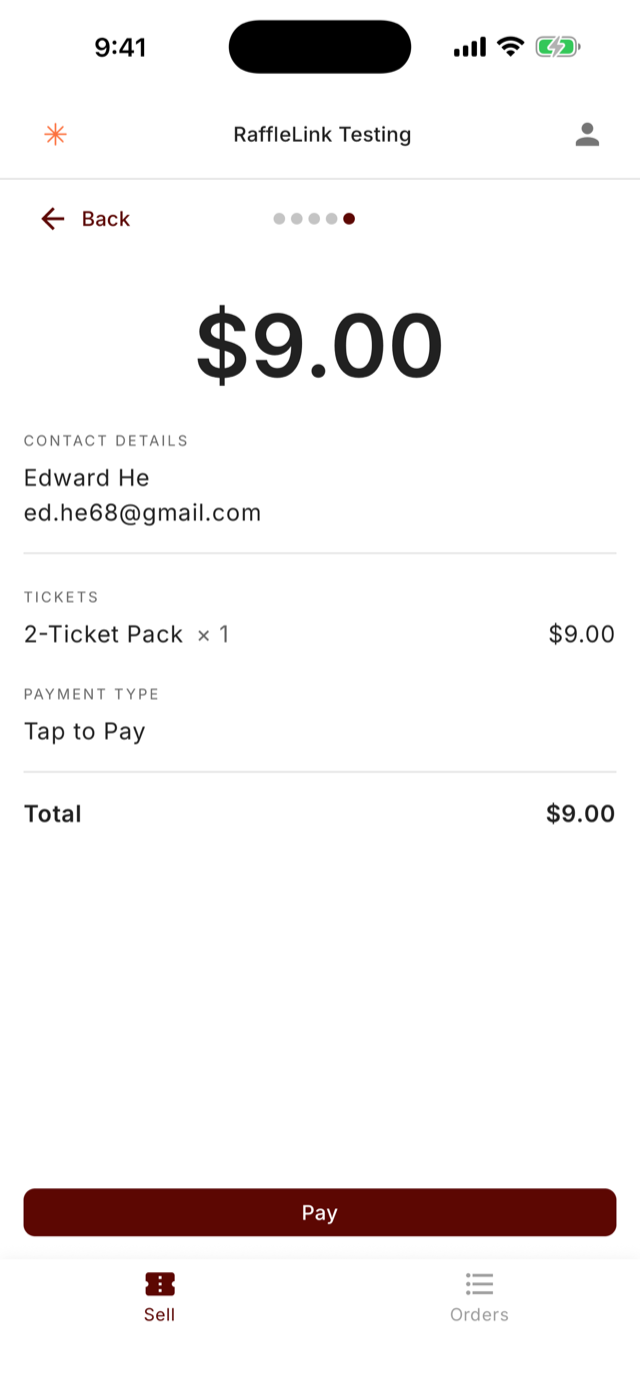
- Pay — the buyer holds their card or phone against the seller’s handset, and that’s it.
Then the order completes. The buyer gets an email with their tickets, and the screen shows a QR code and their ticket numbers so they can see them immediately, standing right there.
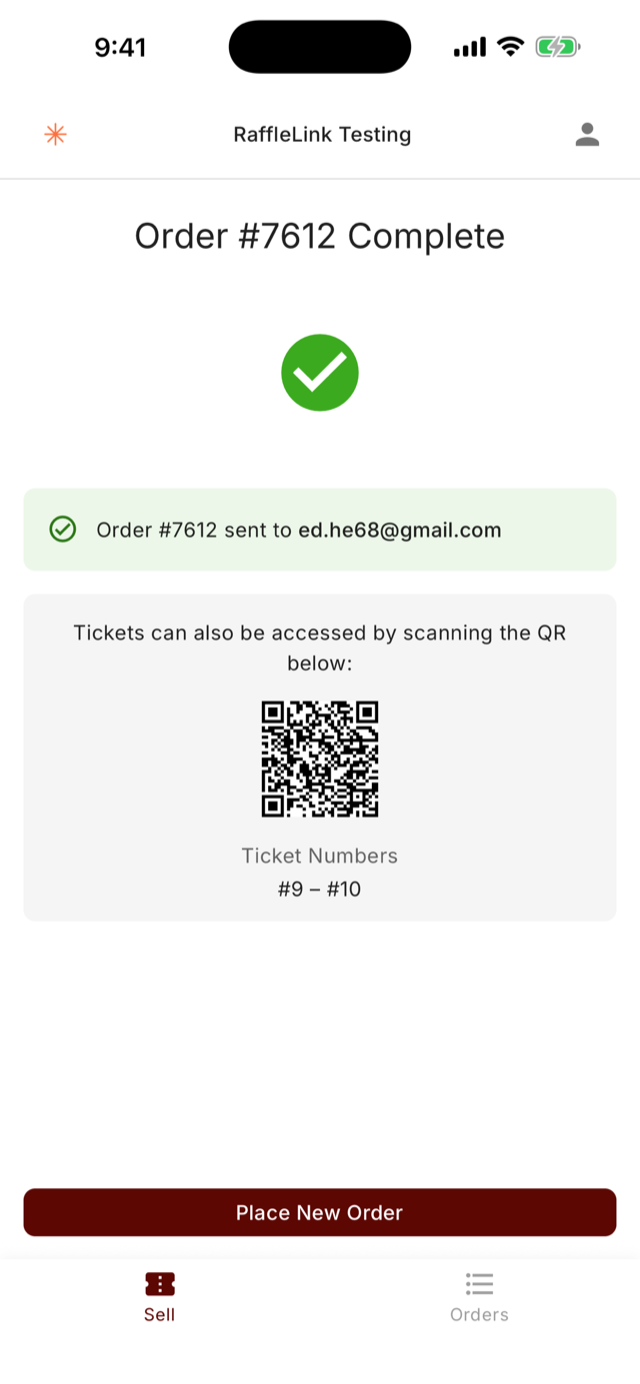
The same ticket as an online sale
This is the part we care most about: a Tap to Pay sale isn’t a special case bolted on the side. It runs through the same ticket issuance pipeline as an online purchase, so an in-person ticket is identical to one bought at 11pm from the couch.
- Real digital ticket numbers, allocated from the same pool.
- The same confirmation email and the same order page for the buyer.
- The same single draw — nothing to merge, nothing to import.
- Every sale visible in your live sales dashboard as it happens, split by channel, so you can watch the fete’s takings land in real time.
It also means your on-the-ground sellers feed the same attribution you’d get online, which is what makes team sales tracking work across both channels at once.
Cash, EFTPOS and paper still belong here
Tap to Pay is the headline, but the app is a till, not a card-only kiosk. Cash and EFTPOS sales can be recorded through the same flow, which means the buyer still gets a proper digital ticket and you still get the record — and recording them costs you nothing.
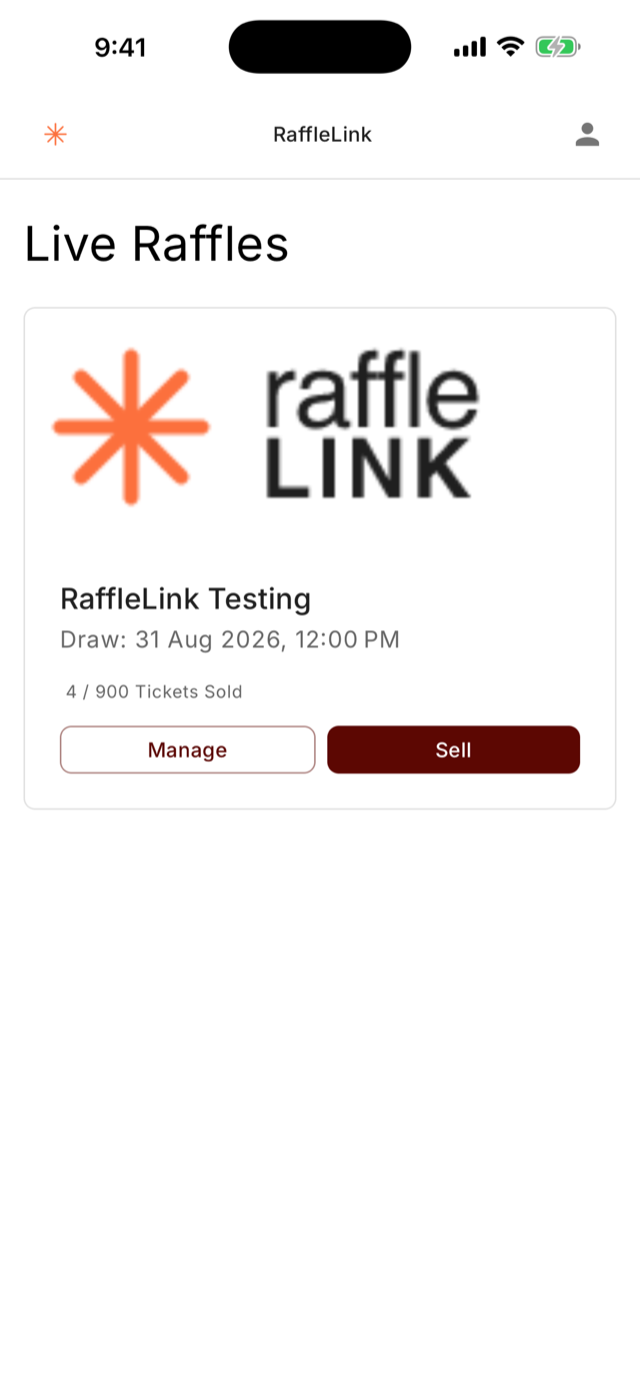
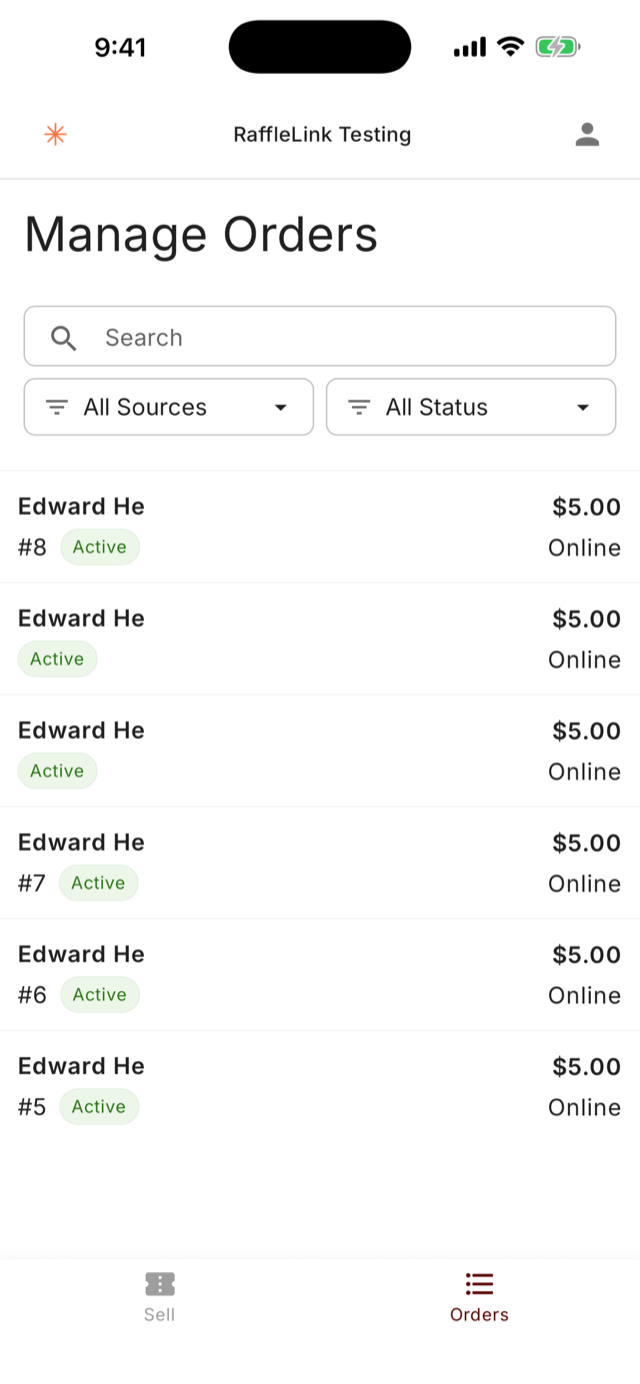
The Orders tab shows every order for that raffle — searchable, filterable by source and status, and with the ability to void a sale on the spot when someone changes their mind or a volunteer fat-fingers a quantity. No note-to-self to fix it back at the office.
And if you’re running paper books alongside all of this, nothing changes: paper tickets still merge into one fair draw exactly as described in our guide to hybrid raffles.
Who can use it, and what it costs
Who: anyone in your organisation with a ticket seller or admin role. Sign-in is the same RaffleLink account they already have — add your volunteers as ticket sellers in the web app and they can sell without seeing your payouts, settings or supporter data.
What you need: for Tap to Pay on iPhone, an iPhone XS or later running iOS 16.4 or newer. On Android, a reasonably recent phone with NFC. Any phone that can run the app can still record cash and EFTPOS sales, even if it can’t take contactless payments itself.
What it costs: the app is free, and there’s no hardware to buy or hire. Tap to Pay sales carry the same 5.5% card fee as online sales — inclusive of GST and payment processing, with nothing else on top. Cash and EFTPOS sales recorded in the app are free.
Setting up: the raffle itself is still built on the web — prizes, compliance, permits and payouts all live there. The app is the till at the event, not a second place to manage your raffle.
Getting started
- Create or open your raffle in the RaffleLink web app and make sure it’s active.
- Add your volunteers to your organisation as ticket sellers.
- Have each of them install RaffleLink Ticket Booth from the App Store or Google Play and sign in.
- Run one $5 test sale before the event so everyone has seen the flow once.
That’s it. The next time someone at your stall reaches for a wallet and finds it empty, it won’t cost you the sale.
Questions about setting your team up, or want a hand before a big event weekend? Get in touch — we’d genuinely like to hear how it goes.