Promo Designs: Make Your Raffle Poster and Social Posts in Minutes
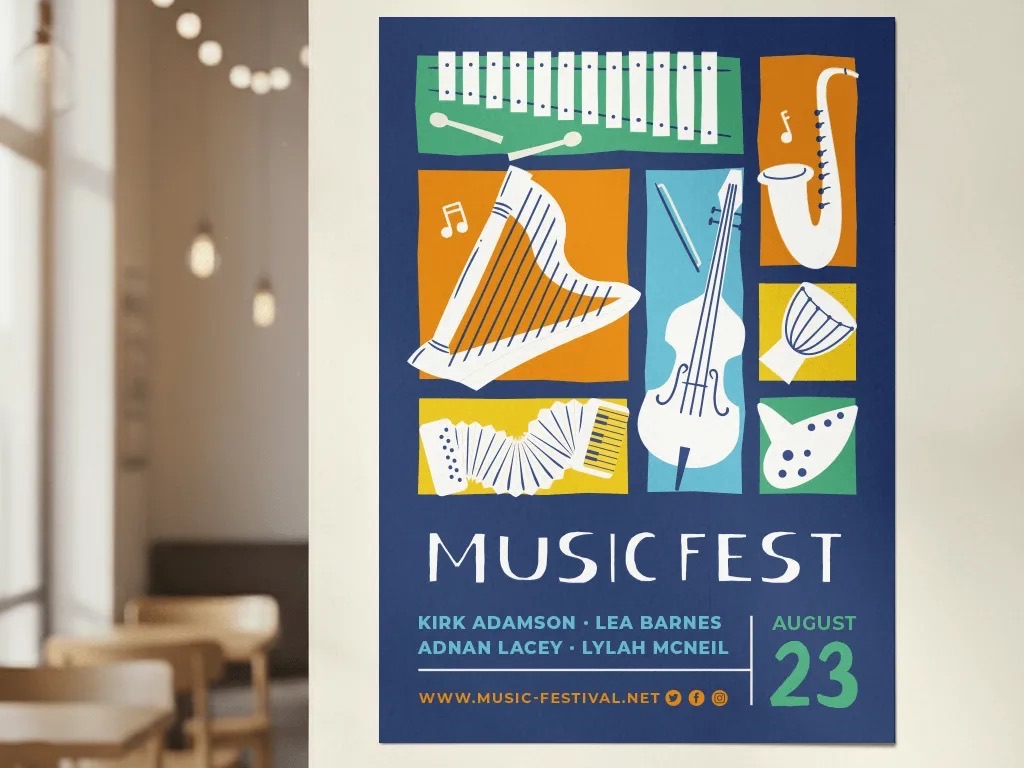
Every raffle needs a poster, and these days a poster is as likely to be an Instagram post or a story as a sheet of A4 on the noticeboard. Most committees don’t have a designer for either. What usually happens is one of three things: someone opens Canva at 11pm, someone’s teenager is roped in, or the raffle launches with no poster at all and the noticeboard stays empty for a fortnight.
As of this month there’s a fourth option. Open any raffle, go to Promote, and you’ll find a new Promo Designs tab: a design editor that starts from your raffle’s own details and lets you customise from there. It makes the printed poster and the social media versions from the same tool, so “poster” in this article means all of them. It sits alongside the Campaign Timeline and Seller Leaderboard you already use on that page.
Start with a size and a theme
Creating a design takes two choices. First a size:
| Size | Best for |
|---|---|
| Poster (A4) | The noticeboard, the shop window, the school office. Downloads as a PDF. |
| Social Media Post (4:5) | Instagram and Facebook feed posts. |
| Social Media Story (9:16) | Instagram and Facebook stories. |
| Square (1:1) | Profile posts, WhatsApp groups, email banners. |
Then a look. There are four themes, each with its own background art, display font and colour palette: Retro, Minimal, Doodle and Checkers. Pick one and the editor builds the design immediately. You’ll see it laid out before you touch anything.

It already knows your raffle
The reason it’s quick is that the design is filled in from the raffle you’re promoting:
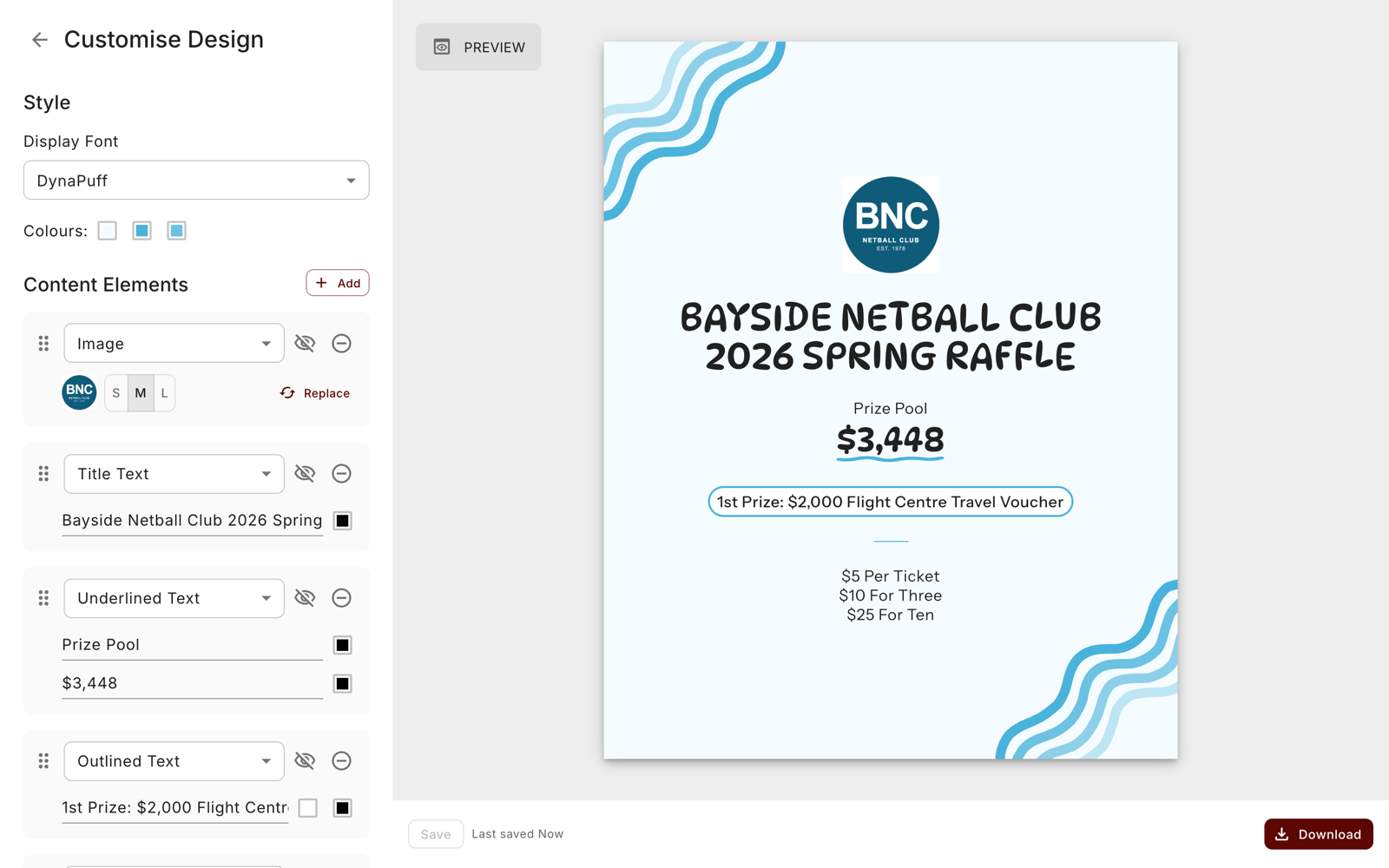
- Your raffle’s title as the headline.
- The prize pool, totalled from the prize values you entered, as an underlined figure.
- Your first prize, in an outlined pill.
- Ticket prices, one line per price, including any packs (say, $5 per ticket and $10 for three).
- The draw date.
- Your organisation’s logo, pulled from your settings.
- On the poster, a QR code pointing at your raffle’s advertised web address, with the address printed underneath so it also works for people who’d rather type it.
The tab appears once your raffle is activated, so by the time you open it the prizes, prices and dates are settled and the design is filled in from them. Every line is still editable, and each text box shows your raffle’s saved values as chips, so you can drop in the second prize, the draw location or the closing date with one click rather than retyping it.
Make it yours
The editor has two panels. Style controls the whole design at once: choose from nine display fonts, from a clean serif through to a Wild West slab, and set the three colours the theme paints with: the background, the primary accent that every underline, outline and QR code inherits, and the secondary tone in the background art. Swatches offer the theme’s own colours, a row of basics and a set of presets, or you can type any hex code. If you wander too far, Reset to Theme puts the original palette back.
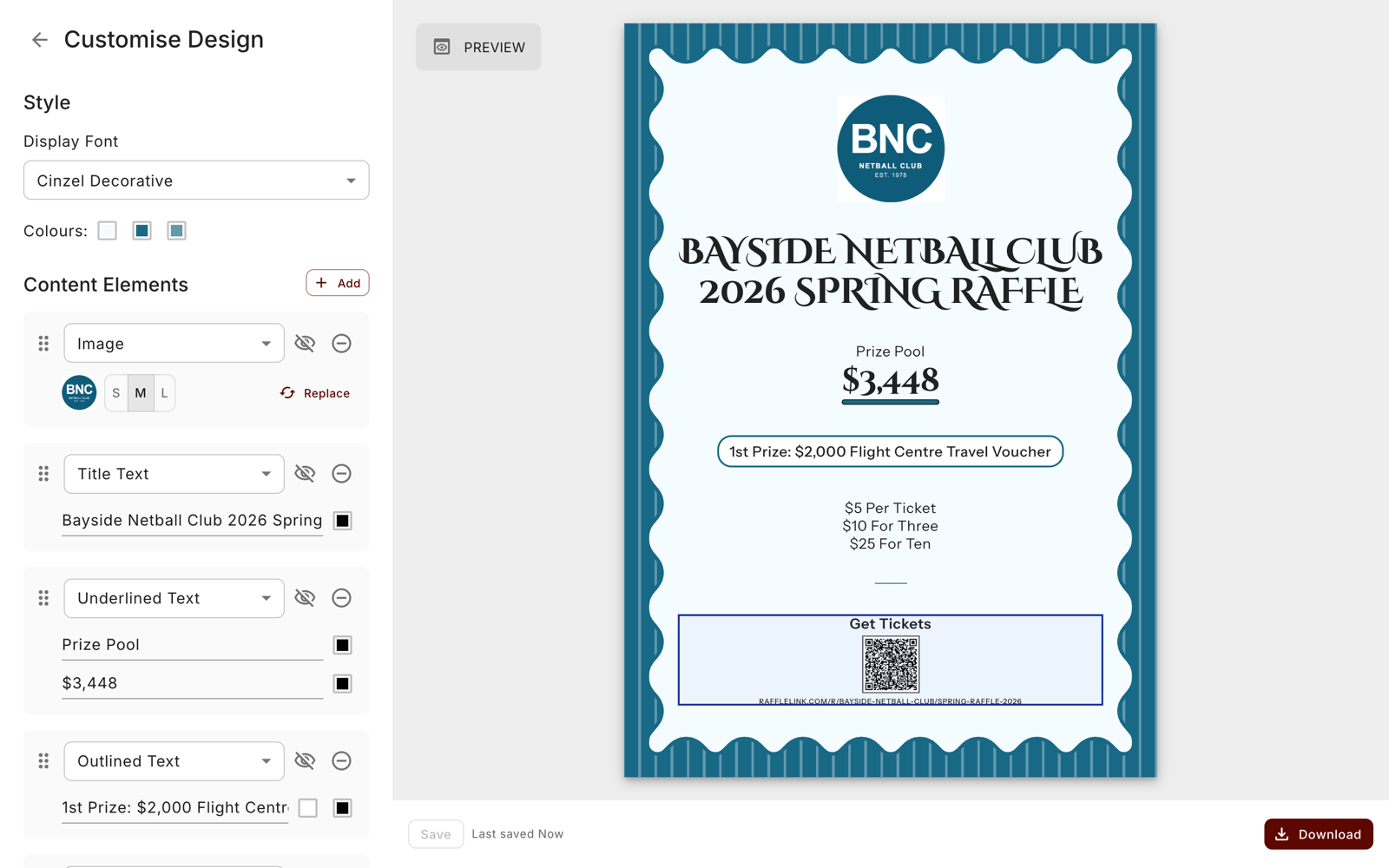
Content Elements is the list of things on the page, top to bottom. There are seven kinds: Image, Title Text, Underlined Text, Outlined Text, Normal Text, Spacer and QR Code. You can add elements, drag them into a different order, change one type into another, hide an element without deleting it (handy for trying two versions), or remove it altogether. Images come in three sizes and spacers can be a solid line, a dashed line or empty space.
For images, the Images dialog has three tabs. My Images shows everything already attached to the raffle: your logo, prize photos, sponsor logos and the raffle page banner. Browse Stock searches a library of free stock photography. Upload New takes a fresh picture and adds it to this raffle. Square images work best.
Download, then make the other sizes
Posters download as a PDF sized to A4, ready for the office printer or a print shop. Social sizes download as a PNG at 1080 pixels wide, which is what Instagram and Facebook want.
Once one design is right, you don’t start again for the others. Each design card has a Create new size option that carries your font, colours, text and image choice across to another size, laid out in that size’s default order. Duplicate copies a design in the same size, so you can keep a version for the noticeboard and a variant for a sponsor to share. Rename any of them, and keep up to 24 designs per raffle.

Three tips
Activate first, then design. Promo Designs is available once the raffle is live, not while it’s a draft, and the text is filled in when you create a design rather than updated afterwards. If you change a prize later, either edit the line or create a fresh design, which takes about a minute.
Put the QR code everywhere. At The Brisbane Dinner, a QR code on the tables sold $15,200 of tickets in one evening without anyone asking. The poster’s QR code is the same idea for your foyer, your canteen window and your season launch.
If your committee lives in Canva, you can still use both. The A4 PDF imports into Canva as an editable design through its “Import file” option, so the RaffleLink poster can be a starting point rather than a finished product.
Promo Designs is live now for every active raffle. Open one, click Promote, and see what your poster and social posts look like before you decide whether they need any work at all.